
Skip to content
ARANGA ARANGA ARANGA

Never Give UP!

ARANGA ARANGA ARANGA

Never Give UP!

  • Home
  • Technology
  • Shop
    • Cart
    • Checkout
    • My Account
  • About Us
  • Contact Us
  • Home
  • Technology
  • Shop
    • Cart
    • Checkout
    • My Account
  • About Us
  • Contact Us
Close

Search

ARANGA ARANGA ARANGA

Never Give UP!

ARANGA ARANGA ARANGA

Never Give UP!

  • Home
  • Technology
  • Shop
    • Cart
    • Checkout
    • My Account
  • About Us
  • Contact Us
  • Home
  • Technology
  • Shop
    • Cart
    • Checkout
    • My Account
  • About Us
  • Contact Us
Close

Search

Home/Technology/How to Solve “Error: MySQL Shutdown Unexpectedly” in XAMPP
Fix MySQL Shutdown Error in XAMPP
Technology

How to Solve “Error: MySQL Shutdown Unexpectedly” in XAMPP

By admin
October 29, 2026 3 Min Read
0

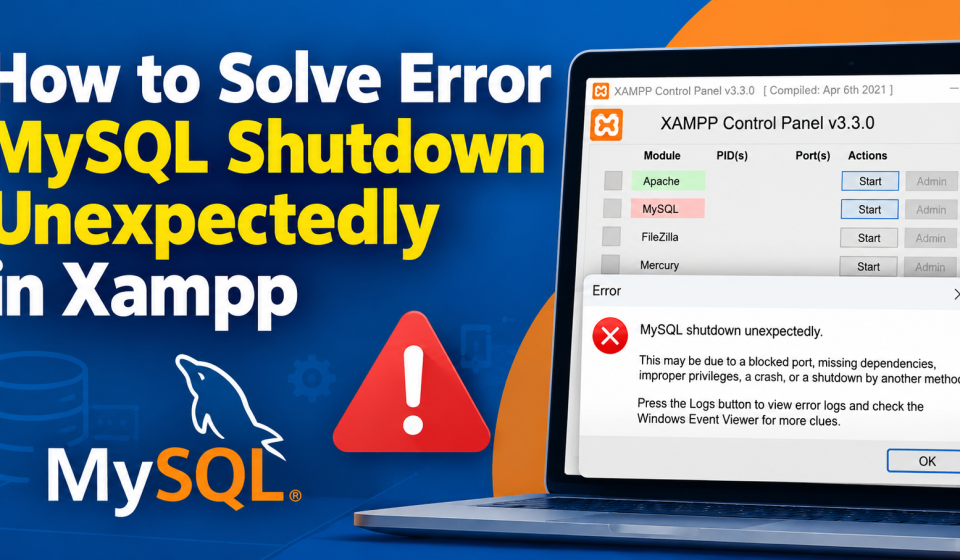
If you are a WordPress developer or running a local development server, seeing the dreaded “Error: MySQL shutdown unexpectedly” in your XAMPP control panel can instantly halt your workflow.

This is one of the most common issues faced by users working with local WordPress installations. Fortunately, it is usually easy to fix. In this guide, we will walk you through the most effective step-by-step solutions to get your database running again without losing your data.

Why Does the MySQL Shutdown Error Happen?

Before jumping into the solutions, it helps to understand why the error occurs. Usually, MySQL crashes or shuts down unexpectedly due to:

  • Corrupted database files (often caused by forced shutdowns, computer crashes, or power outages).

  • Port conflicts (another application, such as Skype or a separate MySQL installation, is using port 3306).

  • Leftover lock files or incorrect process termination.

Step 1: The Quick Fix (Rename the data Folder)

In 90% of cases, database file corruption is the culprit. XAMPP creates a backup of your databases automatically, which makes this fix safe and straightforward.

1.Stop XAMPP Services:

Open your XAMPP Control Panel and ensure both Apache and MySQL are completely stopped. Quit the control panel entirely.

2.Navigate to the MySQL Folder:

Go to your XAMPP installation directory (usually C:\xampp) and open the mysql folder.

3.Rename the Data Folder:

Find the folder named data and rename it to data_old.

4.Duplicate the Backup Folder:

Find the folder named backup in the same directory and make a copy of it. Rename this copied folder to data.

5.Restore Your Databases:

Open your old data_old folder and copy all your specific database folders (exclude the default folders like mysql, performance_schema, and phpmyadmin) and paste them into your new data folder.

6.Recover Aria and InnoDB Logs:

Copy the ibdata1 file from data_old and paste it into the new data folder (overwrite when prompted). Finally, copy all files from the backup folder and paste them into the new data folder to ensure system tables are intact.

Restart XAMPP and start MySQL. Your databases should now load successfully!

Step 2: Check for Port Conflicts

If renaming the folder doesn’t work, another application might be hogging port 3306, which MySQL relies on.

  1. Open your XAMPP Control Panel and click on the Netstat button on the right side.

  2. Look through the list to see if another process is using port 3306.

  3. If Skype, Windows World Wide Web Publishing Service, or another database service is using it, close that application.

  4. Alternatively, you can change MySQL’s port by clicking Config next to MySQL in XAMPP, selecting my.ini, and changing port=3306 to port=3307. (Remember to update your WordPress wp-config.php file if you change the port permanently).

Step 3: Run the MySQL Troubleshooting Script

XAMPP includes built-in batch files designed to reset and repair corrupted tables automatically.

  1. Navigate to your XAMPP directory (C:\xampp\mysql).

  2. Run the file named mysql_upgrade.bat (or look for resetroot.bat depending on your XAMPP version).

  3. Allow the script to execute, then restart XAMPP and try launching MySQL.

Conclusion

Encountering the “MySQL shutdown unexpectedly” error can be frustrating, but by following the steps above—starting with renaming and recovering your data folder—you can restore your local WordPress development environment in just a few minutes.

To prevent this issue in the future, always make sure to properly shut down Apache and MySQL in the XAMPP Control Panel before shutting down your computer.

Tags:

Localhost ServerMySQLXAMPP
Author

admin

Follow Me
Other Articles
Install Ubuntu on Windows 11 with WSL
Previous

How to Install Ubuntu Using WSL on Windows 11 (Step-by-Step Guide)

No Comment! Be the first one.

Leave a Reply Cancel reply

Your email address will not be published. Required fields are marked *

Hey, I’m Aranganathan - Software Developer & Technical Trainer.
  • X
  • Instagram
  • Facebook
  • YouTube
Work Experience

Velora Labs

Frontend Developer

2021-present

Luxora Digital

Web Developer

2019-2021

Averion Studio

Support Specialist

2017-2019

Available for Hire
Get In Touch

Recent Posts

  • Fix MySQL Shutdown Error in XAMPP
    How to Solve “Error: MySQL Shutdown Unexpectedly” in XAMPP
    by admin
    October 29, 2026
  • Installing Kali Linux in VMware Pro
    How to Install Kali Linux in VMware Workstation Pro (Step-by-Step Guide)
    by admin
    October 28, 2026
  • Install Ubuntu on Windows 11 with WSL
    How to Install Ubuntu Using WSL on Windows 11 (Step-by-Step Guide)
    by admin
    October 28, 2026
  • Fix MySQL Shutdown Error in XAMPP
    How to Solve “Error: MySQL Shutdown Unexpectedly” in XAMPP
    by admin
    October 29, 2026

Technologies

Figma

Collaborate and design interfaces in real-time.

Notion

Organize, track, and collaborate on projects easily.

DaVinci Resolve 20

Professional video and graphic editing tool.

Illustrator

Create precise vector graphics and illustrations.

Photoshop

Professional image and graphic editing tool.

ARANGA

Welcome to your one-stop destination for useful blog articles, creative digital templates, and downloadable resources designed to make everyday tasks easier and more productive.

  • YouTube
  • Instagram
  • Facebook
  • GitHub

Quick Links

  • Home
  • Shop
  • Pricing Details
  • About Us
  • Contact Us

Important Links

  • Disclaimer
  • Privacy Policy
  • Terms & Conditions
  • Shipping & Delivery Policy
  • Refund & Cancellation Policy

Contact

Phone

+91-7826856074

Email

arangaonline@gmaiil.com

Location

2-249, Kuravankadu, Poosariptty, Kadayampatty, Salem, Tamil Nadu, India - 636305

Copyright 2026 — ARANGA. All rights reserved.