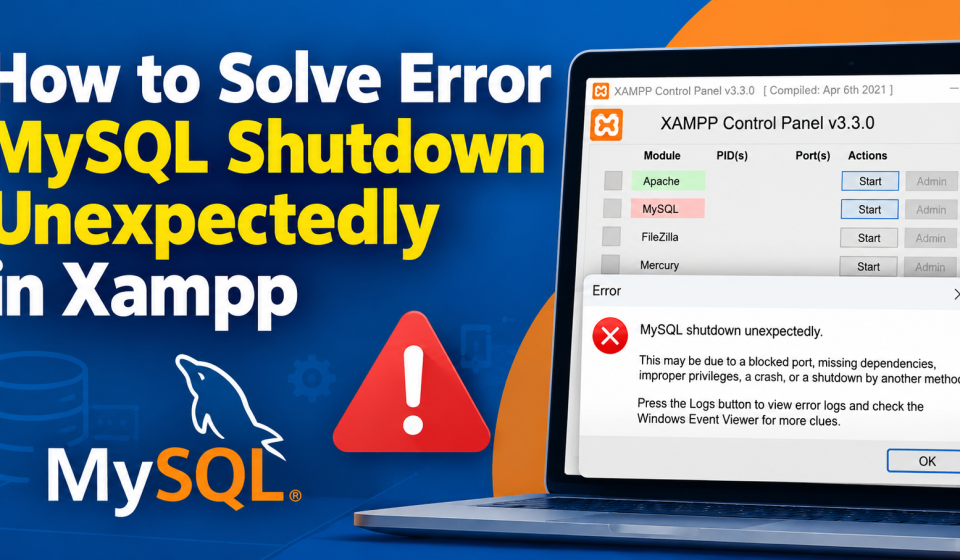

If you are a WordPress developer or running a local development server, seeing the dreaded “Error: MySQL shutdown unexpectedly” in your XAMPP control panel can instantly halt your workflow.
This is one of the most common issues faced by users working with local WordPress installations. Fortunately, it is usually easy to fix. In this guide, we will walk you through the most effective step-by-step solutions to get your database running again without losing your data.
Why Does the MySQL Shutdown Error Happen?
Before jumping into the solutions, it helps to understand why the error occurs. Usually, MySQL crashes or shuts down unexpectedly due to:
-
Corrupted database files (often caused by forced shutdowns, computer crashes, or power outages).
-
Port conflicts (another application, such as Skype or a separate MySQL installation, is using port 3306).
-
Leftover lock files or incorrect process termination.
Step 1: The Quick Fix (Rename the data Folder)
In 90% of cases, database file corruption is the culprit. XAMPP creates a backup of your databases automatically, which makes this fix safe and straightforward.
Restart XAMPP and start MySQL. Your databases should now load successfully!
Step 2: Check for Port Conflicts
If renaming the folder doesn’t work, another application might be hogging port 3306, which MySQL relies on.
-
Open your XAMPP Control Panel and click on the Netstat button on the right side.
-
Look through the list to see if another process is using port
3306. -
If Skype, Windows World Wide Web Publishing Service, or another database service is using it, close that application.
-
Alternatively, you can change MySQL’s port by clicking Config next to MySQL in XAMPP, selecting
my.ini, and changingport=3306toport=3307. (Remember to update your WordPresswp-config.phpfile if you change the port permanently).
Step 3: Run the MySQL Troubleshooting Script
XAMPP includes built-in batch files designed to reset and repair corrupted tables automatically.
-
Navigate to your XAMPP directory (
C:\xampp\mysql). -
Run the file named
mysql_upgrade.bat(or look forresetroot.batdepending on your XAMPP version). -
Allow the script to execute, then restart XAMPP and try launching MySQL.
Conclusion
Encountering the “MySQL shutdown unexpectedly” error can be frustrating, but by following the steps above—starting with renaming and recovering your data folder—you can restore your local WordPress development environment in just a few minutes.
To prevent this issue in the future, always make sure to properly shut down Apache and MySQL in the XAMPP Control Panel before shutting down your computer.