
Skip to content
ARANGA ARANGA ARANGA

Never Give UP!

ARANGA ARANGA ARANGA

Never Give UP!

  • Home
  • Technology
  • Earn Money
  • Shop
    • Cart
    • Checkout
    • My Account
  • About Us
  • Contact Us
  • Home
  • Technology
  • Earn Money
  • Shop
    • Cart
    • Checkout
    • My Account
  • About Us
  • Contact Us
Close

Search

ARANGA ARANGA ARANGA

Never Give UP!

ARANGA ARANGA ARANGA

Never Give UP!

  • Home
  • Technology
  • Earn Money
  • Shop
    • Cart
    • Checkout
    • My Account
  • About Us
  • Contact Us
  • Home
  • Technology
  • Earn Money
  • Shop
    • Cart
    • Checkout
    • My Account
  • About Us
  • Contact Us
Close

Search

Home/Technology/How to Install Ubuntu Using WSL on Windows 11 (Step-by-Step Guide)
Install Ubuntu on Windows 11 with WSL
Technology

How to Install Ubuntu Using WSL on Windows 11 (Step-by-Step Guide)

By admin
October 28, 2026 2 Min Read
0

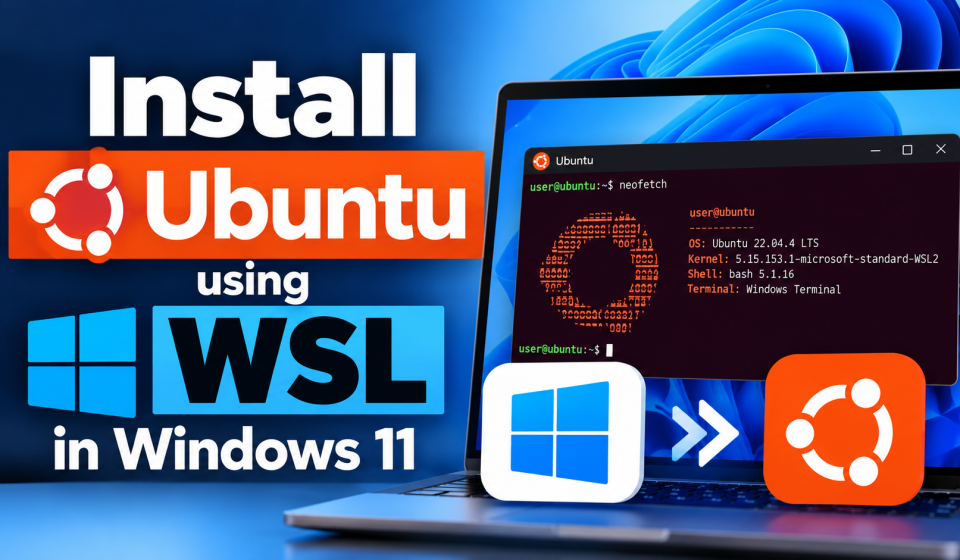
Windows Subsystem for Linux (WSL) allows developers and enthusiasts to run a native Linux environment directly on Windows, alongside your usual Windows apps and tools, without the overhead of a traditional virtual machine.

Follow this quick and easy guide to install Ubuntu on Windows 11 using WSL.

Prerequisites

Before getting started, make sure your system meets these requirements:

  • Operating System: Windows 11 (Home, Pro, or Enterprise).

  • Virtualization: Hardware virtualization must be enabled in your computer’s BIOS/UEFI settings.

Step 1: Open PowerShell as Administrator

  1. Click the Start button on your taskbar.

  2. Type powershell in the search bar.

  3. Right-click on Windows PowerShell and select Run as administrator.

Step 2: Install WSL and Ubuntu with a Single Command

Modern versions of Windows 11 make installing WSL incredibly simple. A single command will enable all necessary virtualization features, download the latest WSL kernel, and install Ubuntu by default.

  1. In your Administrator PowerShell window, run the following command:

wsl --install
  1. Restart your computer when prompted to complete the installation of the core virtualization components.

Step 3: Set Up Your Ubuntu Username and Password

Once your computer restarts, the Ubuntu terminal will automatically launch to complete its setup process:

  1. Wait a moment for the installation to finalize.

  2. When prompted, type a new UNIX username and press Enter.

  3. Enter a password (note that characters won’t show on screen as you type for security reasons) and confirm it.

Congratulations! You now have a fully functional Ubuntu terminal running directly inside Windows 11.

Step 4: Update Your Ubuntu Environment

It is always best practice to update and upgrade your packages immediately after a fresh installation. Run the following commands in your Ubuntu terminal:

sudo apt update && sudo apt upgrade -y

Useful WSL Commands

Keep these handy commands in mind for managing your WSL distributions:

  • List installed distributions: wsl --list --verbose

  • Shut down all WSL instances: wsl --shutdown

  • Open Ubuntu quickly: Just type ubuntu in any Windows Command Prompt, PowerShell, or the Windows Run dialog (Win + R).

Tags:

LinuxUbuntu
Author

admin

Follow Me
Other Articles
Installing Kali Linux in VMware Pro
Previous

How to Install Kali Linux in VMware Workstation Pro (Step-by-Step Guide)

No Comment! Be the first one.

Leave a Reply Cancel reply

Your email address will not be published. Required fields are marked *

Hey, I’m Aranganathan - Software Developer & Technical Trainer.
  • X
  • Instagram
  • Facebook
  • YouTube
Work Experience

Velora Labs

Frontend Developer

2021-present

Luxora Digital

Web Developer

2019-2021

Averion Studio

Support Specialist

2017-2019

Available for Hire
Get In Touch

Recent Posts

  • Install Ubuntu on Windows 11 with WSL
    How to Install Ubuntu Using WSL on Windows 11 (Step-by-Step Guide)
    by admin
    October 28, 2026
  • Installing Kali Linux in VMware Pro
    How to Install Kali Linux in VMware Workstation Pro (Step-by-Step Guide)
    by admin
    October 28, 2026
  • Install Ubuntu on Windows 11 with WSL
    How to Install Ubuntu Using WSL on Windows 11 (Step-by-Step Guide)
    by admin
    October 28, 2026

Technologies

Figma

Collaborate and design interfaces in real-time.

Notion

Organize, track, and collaborate on projects easily.

DaVinci Resolve 20

Professional video and graphic editing tool.

Illustrator

Create precise vector graphics and illustrations.

Photoshop

Professional image and graphic editing tool.

ARANGA

Welcome to your one-stop destination for useful blog articles, creative digital templates, and downloadable resources designed to make everyday tasks easier and more productive.

  • YouTube
  • Instagram
  • Facebook
  • GitHub

Quick Links

  • Shop
  • About Us
  • Contact Us

Important Links

  • Disclaimer
  • Privacy Policy
  • Terms & Conditions
  • Shipping & Delivery Policy
  • Refund & Cancellation Policy

Contact

Phone

+91-7826856074

Email

arangaonline@gmaiil.com

Location

2-249, Kuravankadu, Poosariptty, Kadayampatty, Salem, Tamil Nadu, India - 636305

Copyright 2026 — ARANGA. All rights reserved.